
Sales & Orders
Create sales orders, track dispatch and delivery, and manage customer accounts.
Dispatch
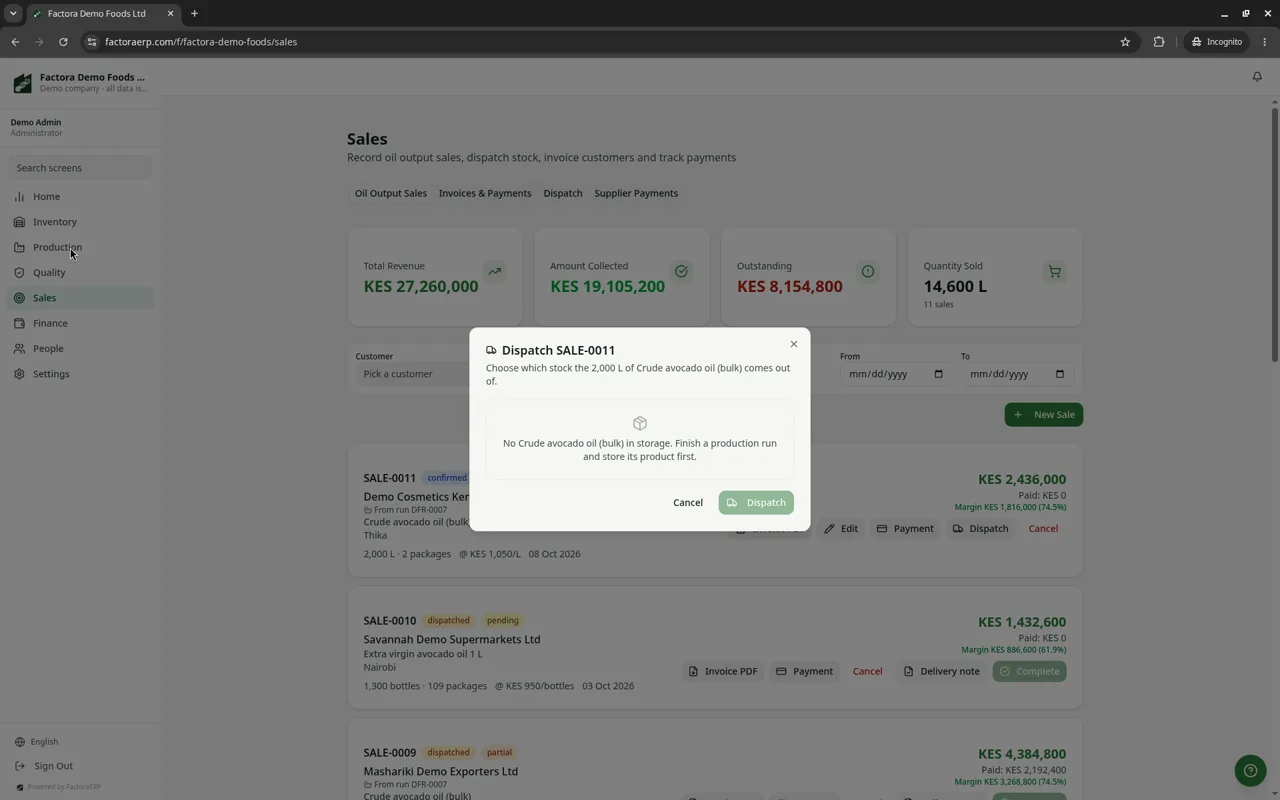
Once a sale is confirmed, open Sales at /f/<company-slug>/sales and dispatch it. The dialog for SALE-0011 shows a stock-check message. It has no date, vehicle, or note fields. Dispatch only when that check says the stock is available.
Customer management
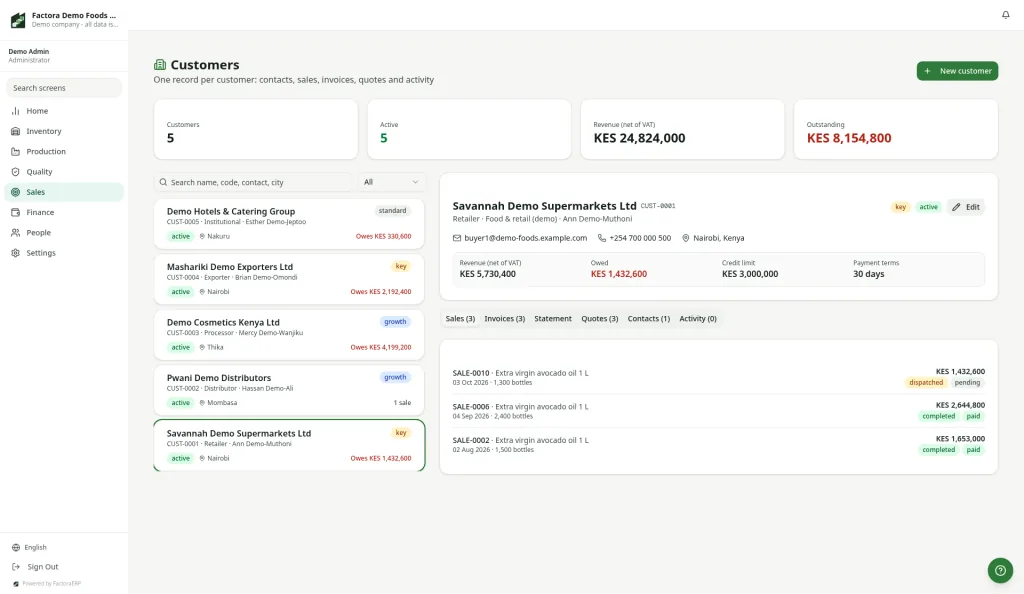
The Customers page stores all your buyer information — company name, contacts, payment terms, and order history. Use customer groups and tags to segment your market.
CRM pipeline
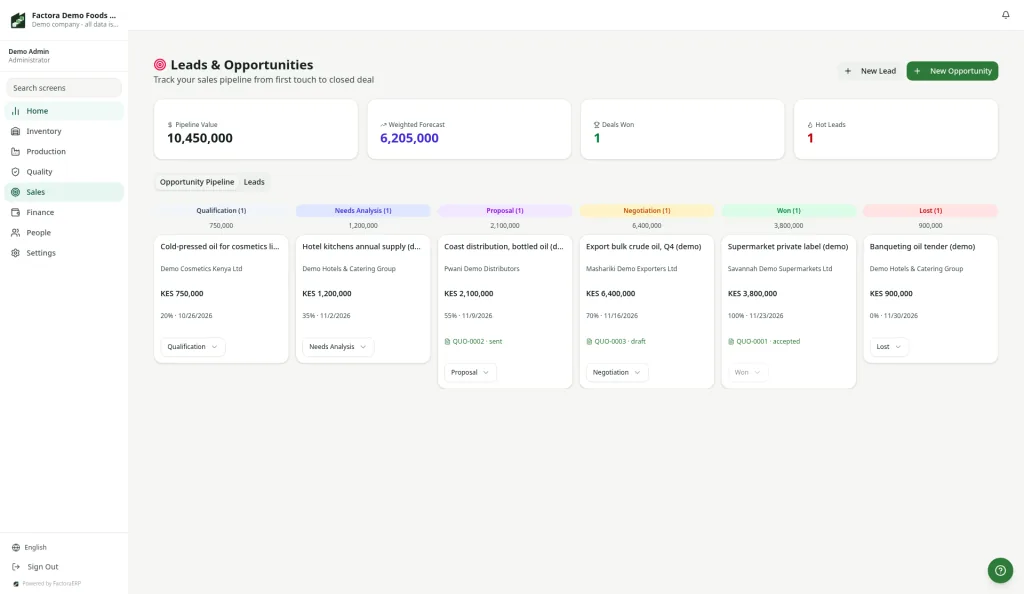
For more complex sales cycles, use the Leads & Opportunities module to track prospects from first contact through to closed deal. The pipeline view lets you see every opportunity by stage.
Learning objectives
- Dispatch only when the order is confirmed and stock is available
- Keep the customer, contacts, payment terms, and history on the customer record
- Use Leads and Opportunities for a sale that is not yet an order
Walk the screen
- Confirm the order and check Order Fulfillment or Inventory before dispatch.
- Open Dispatch for the sale. Read the stock-check message. SALE-0011 is the demo dialog. Do not look for date, vehicle, or note fields on it.
- Notify the customer from that step when the product is set to do so, rather than from a separate undocumented message.
- Open the customer at
/f/<company-slug>/crm-accounts. Savannah Demo Supermarkets Ltd is on 30-day terms and has 3 sales. Check terms and history before you promise a date. - Use groups and tags to segment customers. Do not invent a segment you will not maintain.
- For a prospect, open the pipeline at
/f/<company-slug>/crm-pipeline. Stages run from Qualification through Lost. The early demo opportunity is Cold-pressed oil for cosmetics line (demo). A confirmed order is created on Sales. It does not stay only on the pipeline.
Worked example
Cold-pressed oil for cosmetics line (demo) sits in an early pipeline stage until the buyer confirms. You create the order for Savannah Demo Supermarkets Ltd, whose terms are 30 days and who already has 3 sales. Dispatch opens SALE-0011 and you read the stock check. You do not type a vehicle into that dialog.
Practical tip: if the stock check fails, leave the sale undispatched and look at Order Fulfillment before you promise the buyer.
Common mistakes
- Dispatching because the customer asked, while the stock check says the goods are not available.
- Keeping terms in a notebook instead of on the customer.
- Leaving a won deal on the pipeline and never creating the order.
Recap
- Dispatch for SALE-0011 is a stock check, not a vehicle form.
- The customer record holds terms and history.
- The pipeline is for prospects. Orders are for confirmed sales.