
Users, Roles & Permissions
Invite team members, assign roles, and control who can see and do what.
Custom roles
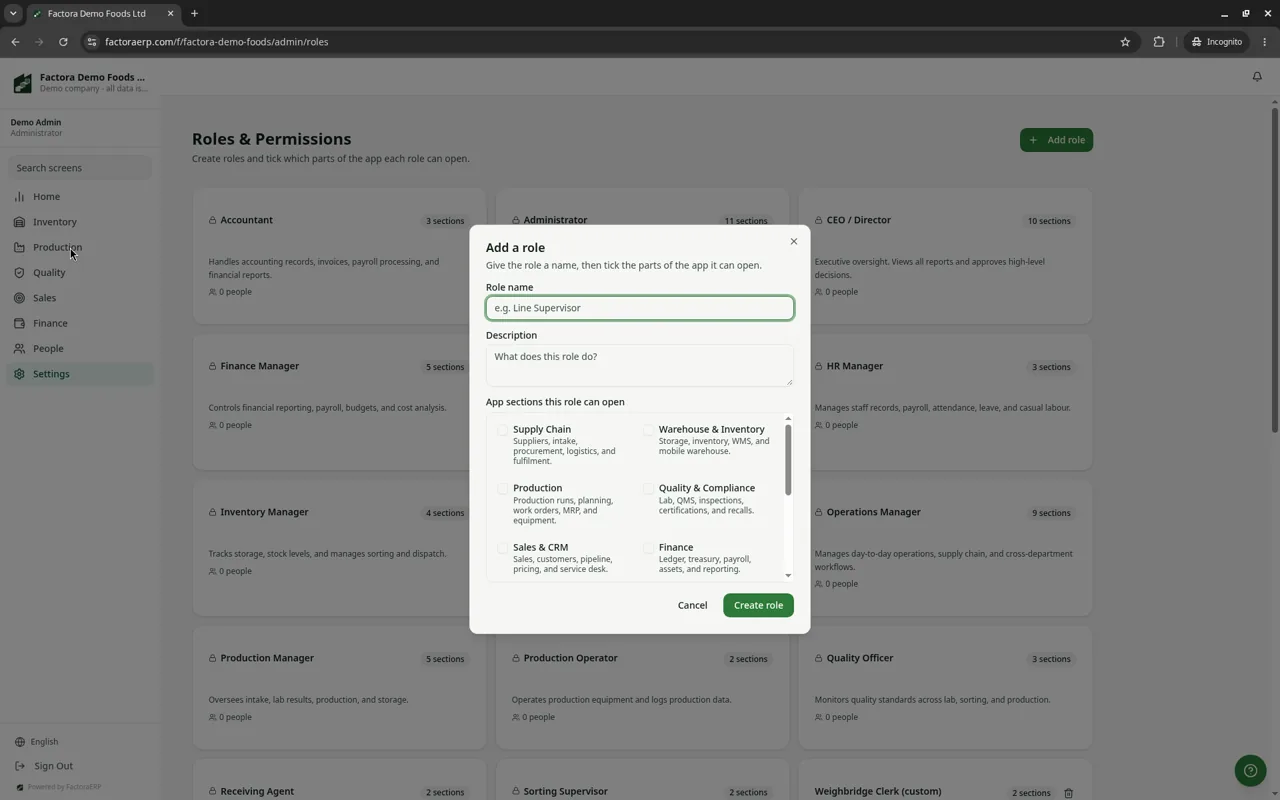
If the built-in roles do not fit, open Roles and Permissions at /f/<company-slug>/admin/roles. Add a role and tick the sections that job needs. The dialog has no access-level sliders.
System Settings
System Settings holds organisation-wide preferences: currency, timezone, date format, and the fiscal year start. Changes there apply to all users.
Learning objectives
- Invite from User Management and assign a role
- Create a custom role in Roles and Permissions when you must
- Keep System Settings, currency, timezone, and the fiscal year, as an administrator task
Walk the screen
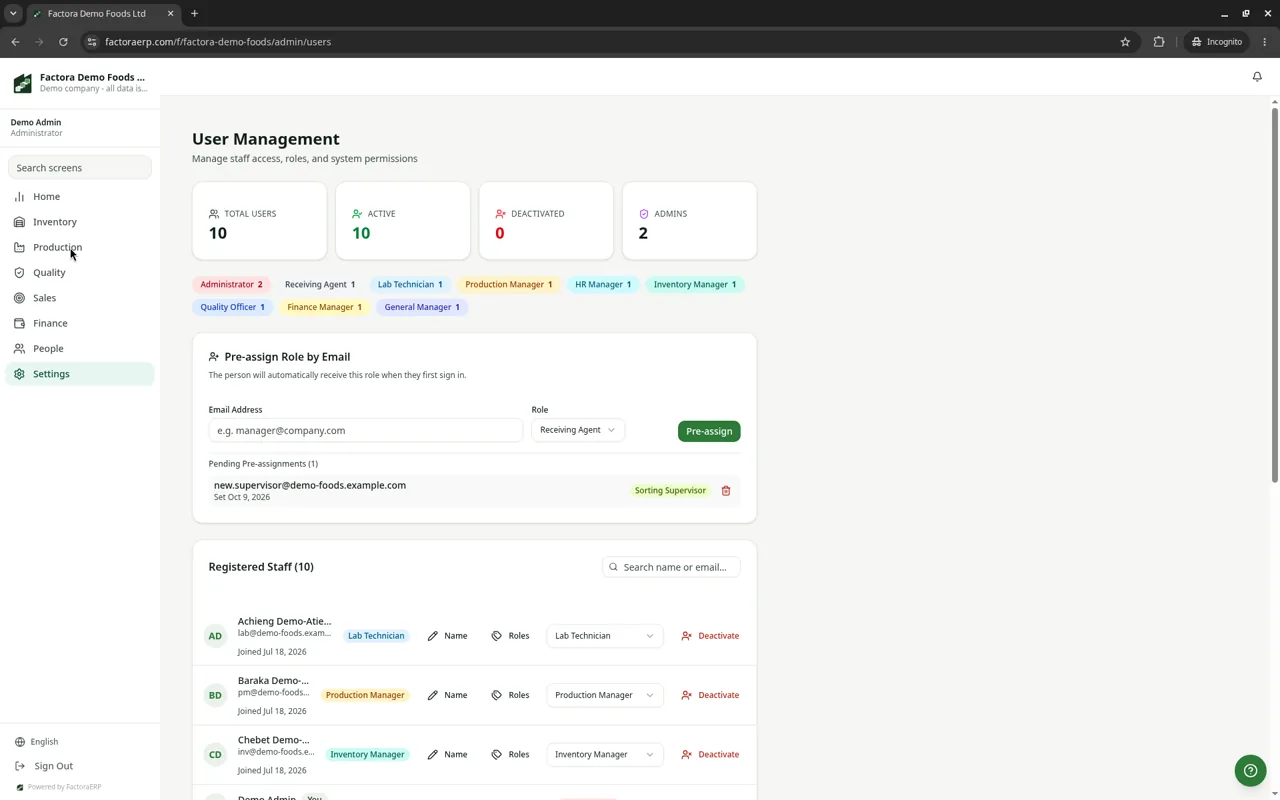
- Open User Management at
/f/<company-slug>/admin/users. The page lists users and their roles, and it includes Pre-assign Role by Email. - Assign the role that matches the job: for example Production Manager, Lab Technician, or Finance Manager.
- Ask the person to sign in and read their sidebar with them.
- If no built-in role fits, open
/f/<company-slug>/admin/roles, add a role, and tick only the sections that job needs. - Change the role when the job changes. Do not add a second role to be kind.
- System Settings at
/f/<company-slug>/admin/system-settingsholds currency, timezone, date format, and the fiscal year start. Those are not a reason to give every user the settings role.
Worked example
The lab needs to submit results and must not approve payroll. The built-in lab role is enough, so you do not clone the administrator. A later custom role for a seasonal receiver includes Material Intake and not Finance.
Common mistakes
- Inviting the whole shift as administrators.
- A custom role that ticks every module.
- Leaving a leaver's user active because the role might be useful.
Recap
- User Management invites and assigns roles.
- Custom roles exist for jobs the built-in list misses.
- System Settings stay with the administrator.