
Payroll
Prepare monthly payroll for your staff, get it approved in three stages, and record when it's paid.
Setting up payroll
Before running payroll, check that each staff record in HR has the right monthly salary, start date, contract type and payment method (bank, M-Pesa or cash). Staff payroll is monthly. In Payroll → Payroll Rate Settings, check which statutory deductions apply (PAYE, NSSF, SHIF and the Housing Levy are on unless you switch them off), the Housing Levy and consultant withholding tax rates, and the NITA levy.
Creating a payroll run
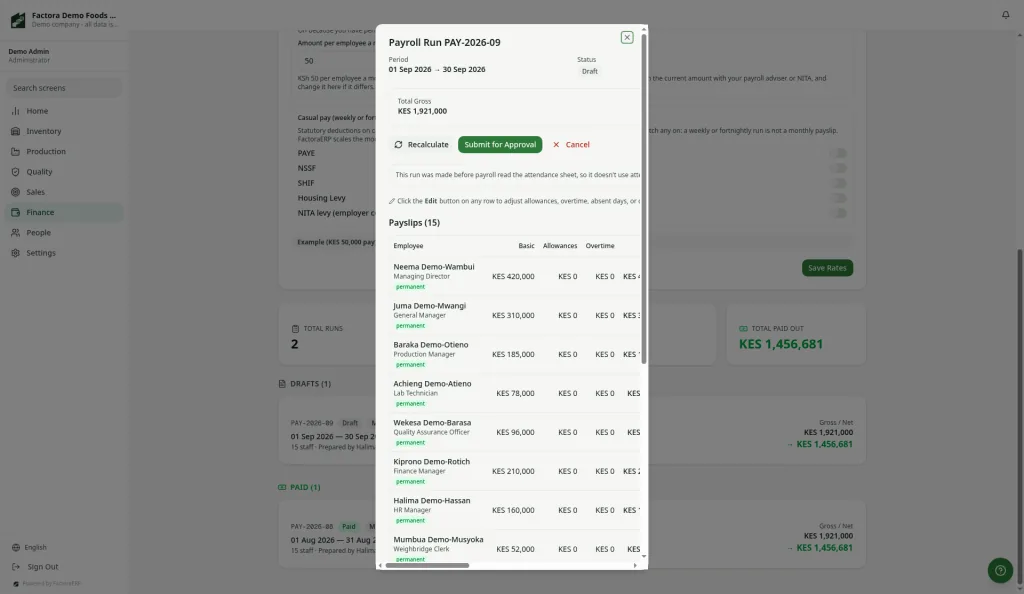
Go to Payroll at /f/<company-slug>/payroll and create a run for one month: 28 to 31 days, for example draft PAY-2026-09 from 01 to 30 Sep. FactoraERP makes a payslip for each active staff member who had started by the end of the period, and for anyone whose last day falls in it. People who join or leave part way through are paid for the calendar days they were employed. Each payslip reads the attendance sheet: absent days, half days (½ a day) and unpaid leave come off at the monthly salary ÷ 26; approved overtime is paid at the shift's rate (at least the Tier 2 rate on rest days and public holidays); hours worked on a public holiday earn the holiday's extra; and night shifts earn the shift's night allowance. Overtime still waiting for approval isn't paid. Consultants pay withholding tax instead of PAYE and the other deductions. Two runs can't cover the same days.
Attendance is locked once it's in a run
The attendance days a run uses, and days with no mark in its period, can't be changed while the run stands. While the run is a draft you can still approve or reject overtime: press Recalculate before you submit. To change attendance in a draft run, cancel it, fix the day and create the run again. Once a run is approved or paid, adjust next month's payslip by hand. Cancelling a run unlocks its days. While the run is a draft you can also change allowances, overtime added by hand, unpaid days and other deductions on each payslip.
Payslips and schedules
Open any payslip from the run with the printer button, then print it or save it as PDF from your browser. Once a run has final approval you can download PAYE, NSSF, SHIF and Housing Levy schedules as CSV. They are laid out to help you prepare your returns; they are not the KRA, NSSF or SHA upload templates, so check the columns before you upload anything.
Approving and paying
Submit the run for approval. HR approves first, then the general manager, then the CEO/director. Nobody approves a run they prepared, and an admin can approve only one stage of a run unless they're the only approver in the factory. Pay your staff through your bank or M-Pesa as usual, then mark the run paid in FactoraERP. FactoraERP records the payment; it doesn't send money.
Statutory deductions
Payslips use the dated statutory table built into FactoraERP: the PAYE bands and personal relief, the NSSF limits in force for the pay period (KSh 9,000 and KSh 108,000 from February 2026), and SHIF at 2.75% with a KSh 300 minimum. They are worked out on pay after unpaid time. You can see them, read only, in System Settings → HR & Payroll. The NITA levy is an employer cost, not taken from pay: KSh 50 per employee a month is the figure NITA publishes, so confirm it with your adviser and change it in Payroll Rate Settings if it differs. FactoraERP doesn't file returns. Confirm the figures with your payroll adviser or KRA.
Paying KRA, NSSF, SHA and NITA
When a run gets final approval, the accounts show what you owe for PAYE, NSSF, SHIF, the Housing Levy, the NITA levy and withholding tax. After you pay, open the run and use Record statutory payment: it clears what is owed in the accounts. Part payments are fine; paying more than is owed is refused. A run with statutory payments recorded can't be cancelled.
Learning objectives
- Check salary, dates, contract, and payment method on the staff record before the run
- Create one monthly run, recalculate while it is a draft, and do not overlap days
- Submit for HR, then the general manager, then the CEO or director, and mark it paid only after you pay outside the system
Walk the screen
- Open each staff record and confirm monthly salary, start date, contract type, and payment method before you start.
- In Payroll Rate Settings, confirm which statutory deductions apply and the levy rates already described in this lesson.
- Create the run for one month of 28 to 31 days. PAY-2026-09 is the demo draft for 01 to 30 Sep, with 15 payslips, and it has not been submitted. Two runs must not cover the same days.
- While the run is a draft, approve or reject overtime and press Recalculate. Attendance used by the run stays locked until you cancel the draft.
- Submit. HR approves first, then the general manager, then the CEO or director. You do not approve a run you prepared.
- Pay staff through the bank or the payment method on the record, then mark the run paid. After final approval, record statutory payments against what is owed. Do not cancel a run that already has those payments.
Worked example
Draft run PAY-2026-09 covers 01 to 30 Sep, holds 15 payslips, and has not been submitted. While it is a draft you can still recalculate. People who join or leave part way through are paid for the days they were employed, and unpaid time still comes off as this lesson already describes. The preparer submits and does not approve. Payment is recorded after the bank payment, and FactoraERP does not send the money.
Practical tip: leave PAY-2026-09 as a draft until overtime that is still waiting has been approved or rejected, then press Recalculate before you submit.
Common mistakes
- Approving a run you prepared.
- Overlapping two runs on the same days.
- Changing attendance on an approved run instead of adjusting next month.
- Marking the run paid before the money has actually been paid.
Recap
- Payroll is monthly and starts from the HR record and the attendance sheet.
- Draft runs can be recalculated. Approved runs are adjusted next month.
- The approval order is HR, general manager, then CEO or director. The preparer does not approve.