Sensors
OTAA keys
DevEUI, JoinEUI, and AppKey. The sensor and the network server must match.
Introduction
Who this is for. A plant admin registering a sensor, with the label in hand.
Over-the-air activation uses three values. They are printed on the sensor or in the pack that came with it. You enter them in the network server. Factora's Register sensor form does not ask for them.
Architecture
The keys create a session. Later uplinks use that session, not the AppKey.
- DevEUIThe sensor's identity. It is not a secret, and it must match the label.
- JoinEUIIdentifies the join. Some labels still say AppEUI. It is the same field.
- AppKeyThe secret used to join. It is not sent in the uplink. Store it in the password store.
Step 0. Copy the three values from the label
- Read DevEUI, JoinEUI (or AppEUI), and AppKey from the label or the pack sheet.
- Keep the letter case the label uses.
- Put the AppKey in the password store. Do not send it by chat.
ScreenshotComing soon
Step 1. Enter them in the network server
- Open this factory's application in the network server admin.
- Add the device with DevEUI and JoinEUI, then set the AppKey.
- Attach the EU868 device profile and the codec for this measurement.
- Power the sensor and wait for a join, then an uplink.
ScreenshotComing soon
Step 2. Create the Factora device
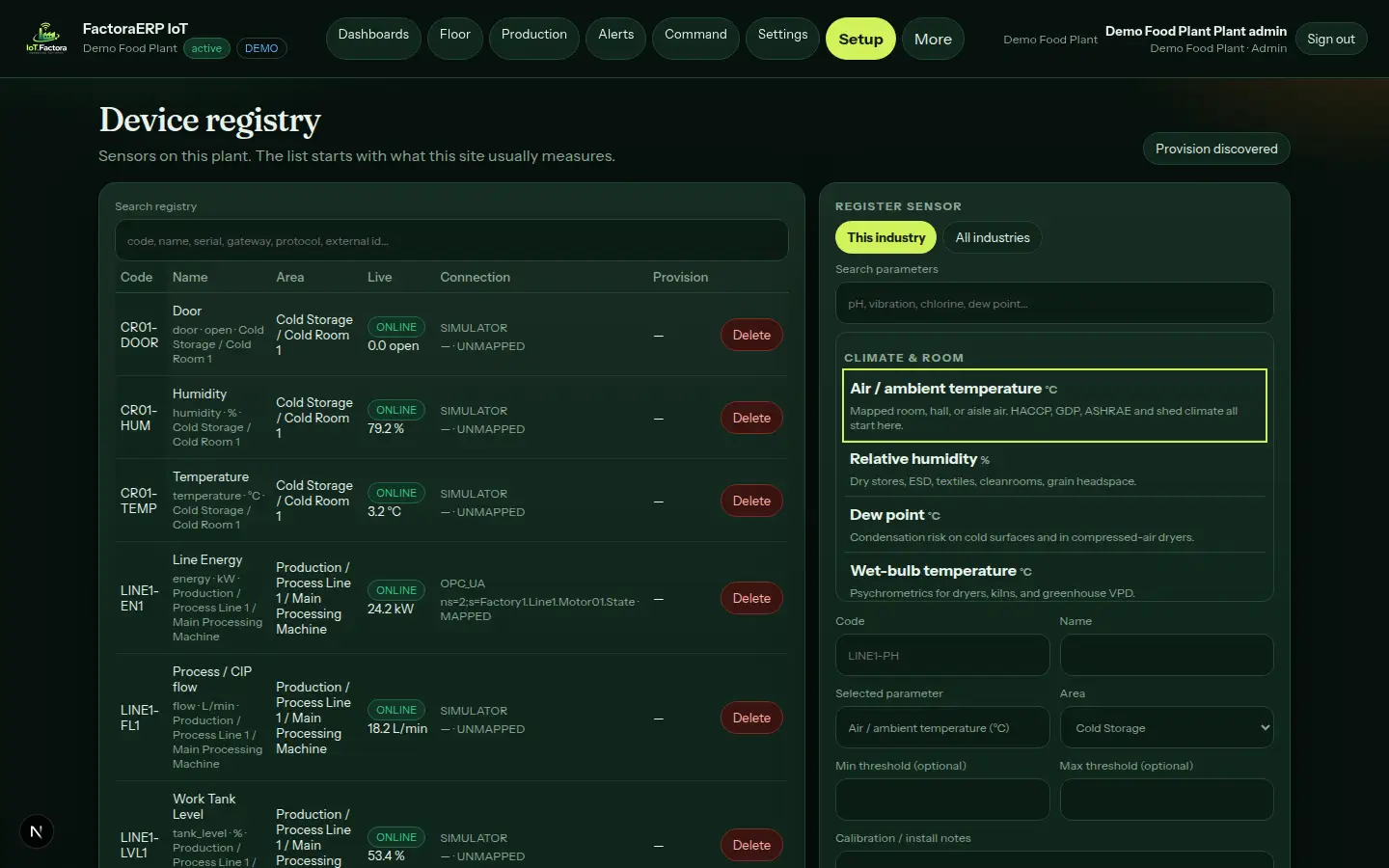
- Open Device registry. The form is Register sensor.
- Enter Code, Name, Area, and the parameter. Min threshold and Max threshold are optional.
- Choose Create device.