
Navigating the Dashboard
Understand the main dashboard, sidebar navigation, and how to quickly find what you need.
The dashboard
The Dashboard is your home base. It is a set of KPI cards. There is no recent-activity feed on this screen. Open the card that matches the job, then open the record in the module.
Notifications
The bell icon sits in the top bar. No notification list was captured for this course, because the list was empty. Open the record from the module the card names rather than waiting on the bell.
Learning objectives
- Read the Dashboard KPI cards and open the one that matches the job
- Use the sidebar when the card does not name the record you need
- Return to the card after the task so you can see whether the figure moved
Walk the screen
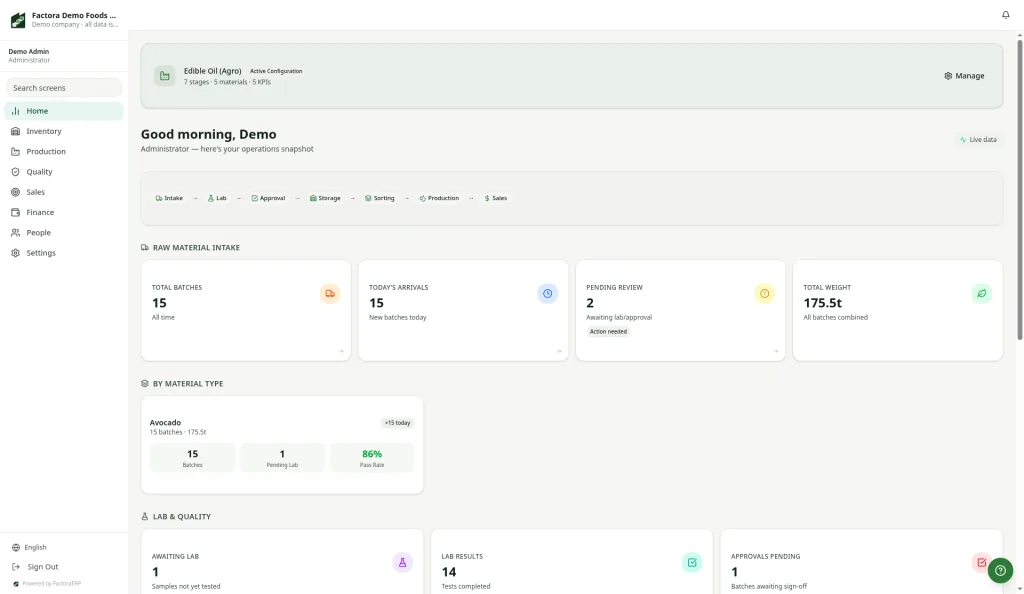
- Open the Dashboard. Read the KPI cards. Do not look for a recent-activity feed.
- Click the card that matches the job, then open the record in that module. Do not decide from the card alone.
- Use the sidebar for a record the cards do not name, such as lot DFB-0014 on
/f/<company-slug>/approvalsor/f/<company-slug>/intake. - The bell is in the top bar. If it has nothing listed, go to the module instead.
- When you have acted, look at the card again.
- For production performance, continue to the KPI Dashboard at
/f/<company-slug>/kpi-dashboard.
Worked example
The demo Dashboard is KPI cards for Factora Demo Foods Ltd. You open the card that matches the question, then the underlying record. Lot DFB-0014 is on Approvals, not on an activity feed. You do not treat a missing feed as a missing lot.
Practical tip: say the path you opened. Approvals, Intake, and the KPI Dashboard are different screens.
Common mistakes
- Treating the card numbers as the record and never opening the lot.
- Searching for a recent-activity feed that this Dashboard does not show.
- Using the Dashboard as a substitute for Traceability.
Recap
- The home screen is KPI cards, with no recent-activity feed.
- Open the module when you need the record.
- Production performance continues on the KPI Dashboard.