
Welcome to FactoraERP
An overview of the platform, what each module does, and how everything connects.
What is FactoraERP?
FactoraERP is a manufacturing operating system that unifies every part of your factory — from receiving raw materials to dispatching finished products. Instead of juggling spreadsheets, separate accounting software, and WhatsApp groups, you run everything in one place.
How is it organised?
The platform is divided into module groups you'll see in the left sidebar: Supply Chain, Warehouse & Inventory, Production, Quality & Compliance, Sales & CRM, Finance, People & HR, and AI & Intelligence. You don't have to use every module — start with the ones most important to your operation and expand over time.
Where to start
If you've just signed up, complete the onboarding wizard — it helps you pick an industry pack, add your first supplier, and register a staff member. After that, head to the Dashboard to see your factory at a glance. Read the next article in this series for a step-by-step walkthrough.
Learning objectives
- Name the module groups in the sidebar and say you do not have to use all of them at once
- Finish the onboarding wizard: industry pack, a first supplier, and a staff member
- Open the Dashboard after that and continue to the setup guide
Walk the screen
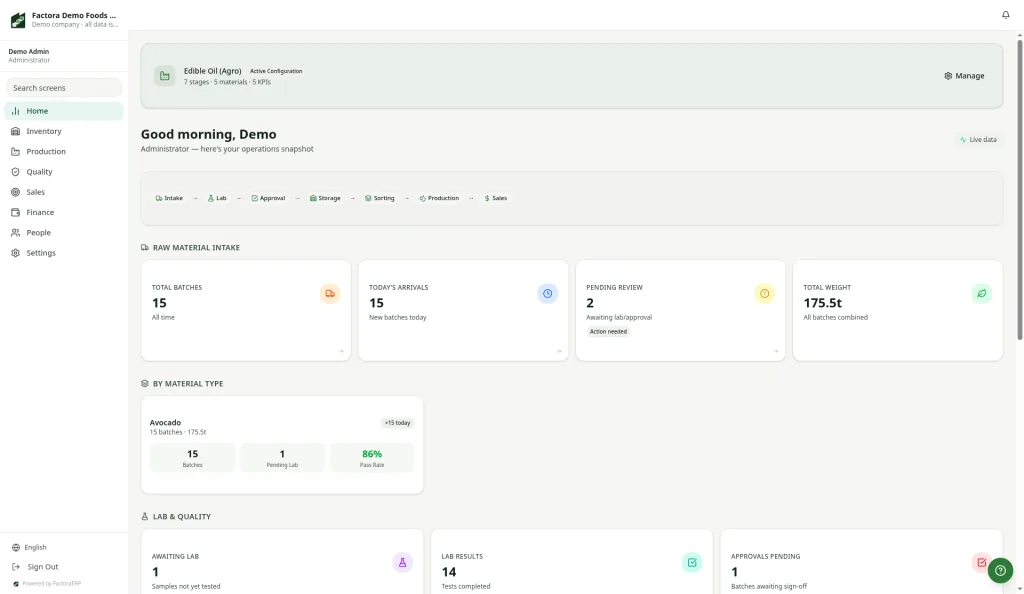
- Read the sidebar groups: Supply Chain, Warehouse and Inventory, Production, Quality and Compliance, Sales and CRM, Finance, People and HR, and AI and Intelligence.
- Pick the group that matches the work you do this week. Leave the others for a later week.
- If you have just signed up, complete the onboarding wizard. It asks for an industry pack, a first supplier, and a staff member.
- You can skip the supplier and the staff member and return from Suppliers and HR. Add at least one of each when you can so the later screens have a record to select.
- Open the Dashboard. The home screen is KPI cards, not a recent-activity feed.
- Continue to Setting Up Your Factory for the company, the pack, and the invitations.
Worked example
A new demo company chooses the edible-oil pack, adds one demo supplier, and skips staff until tomorrow. The Dashboard opens. Payroll is visible in the sidebar map and is not configured today.
Common mistakes
- Trying to fill Finance, HR, and Production before a supplier exists.
- Skipping the wizard and then wondering why terminology does not match the factory.
- Treating the help guides as optional after a failed search for a menu.
Recap
- FactoraERP is one workspace for receiving through dispatch.
- Start with the wizard and the Dashboard.
- Add modules as the operation needs them.