
Logistics & Dispatch
Plan shipments, track deliveries in transit, and manage export logistics.
Shipment management
Open Logistics at /f/<company-slug>/logistics. Shipment SHP-0004 is Planned and has a Dispatch button. Statuses are listed on the screen. This screen does not show carrier or vehicle fields. Change a status only when the physical step has happened.
Export logistics
For international shipments, the Export Logistics sub-module helps manage export documentation, container bookings, and customs requirements. Link shipments to compliance certificates for a complete audit trail.
Order fulfillment
Open Order Fulfillment at /f/<company-slug>/order-fulfillment. Orders sit in Pending, Processing, Shipped, or Delivered. There are no picking buckets on this screen.
Learning objectives
- Create a shipment and move it Planned, Dispatched, In Transit, Delivered
- Link export shipments to the compliance certificates they need
- Read Order Fulfillment as Pending, Processing, Shipped, or Delivered
Walk the screen
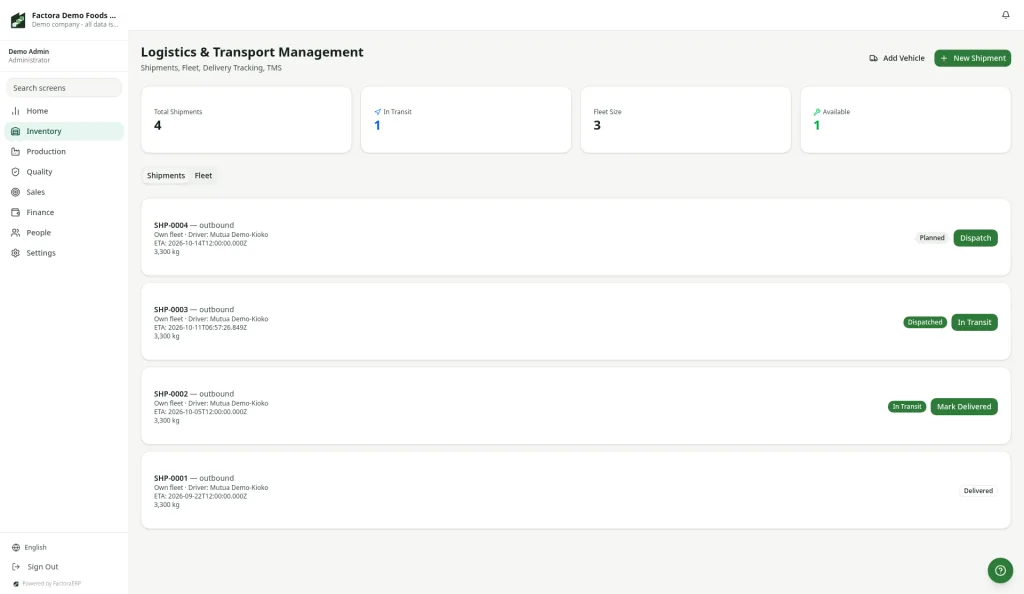
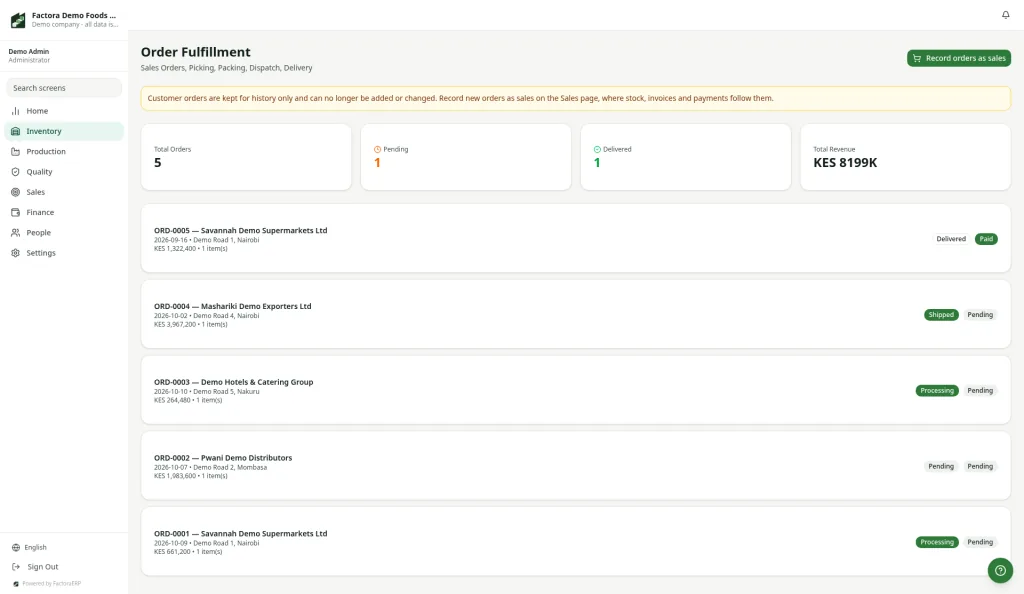
- Open Logistics at
/f/<company-slug>/logistics. SHP-0004 is Planned. Use Dispatch when it is time to move it on. Do not look for a vehicle field on this screen. - Change status only when the physical step happens. Each change stores the time.
- Dispatched means it has left. In Transit means it is on the way. Delivered means it arrived.
- For an international shipment, open Export Logistics and keep the export documents, container booking, and customs notes with the shipment.
- Link the compliance certificate that covers the product so the audit trail is on the shipment, not in a folder.
- Open Order Fulfillment and read Pending, Processing, Shipped, and Delivered. Do not look for picking buckets.
Worked example
SHP-0004 stays Planned until you dispatch it. Order Fulfillment shows the order in Pending, then Processing, Shipped, or Delivered as the work happens. You do not mark Delivered in the morning to get ahead, and you do not invent a vehicle on the logistics screen.
Practical tip: keep the shipment number in the handover. SHP-0004 is clearer than 'the supermarket truck'.
Common mistakes
- Marking Delivered while the truck is still in the yard.
- Keeping export documents only in email.
- Dispatching an order that Order Fulfillment still shows as Pending when the goods are not ready.
Recap
- Statuses are Planned, Dispatched, In Transit, Delivered.
- Export logistics holds documents and the certificate link.
- Fulfillment columns are Pending, Processing, Shipped, and Delivered.