
Recording Material Intake
How to log incoming deliveries, record weights and quality, and start batch tracking.
Batch creation
Each intake automatically creates a batch with a unique ID. This batch ID follows the material through every stage — sorting, storage, production, and dispatch — giving you full traceability.
Learning objectives
- Save the intake so a batch ID is created
- Use that same ID on sorting, storage, production, and dispatch
- Follow the fuller field order in the factory-operations lesson when you are at the weighbridge
Walk the screen
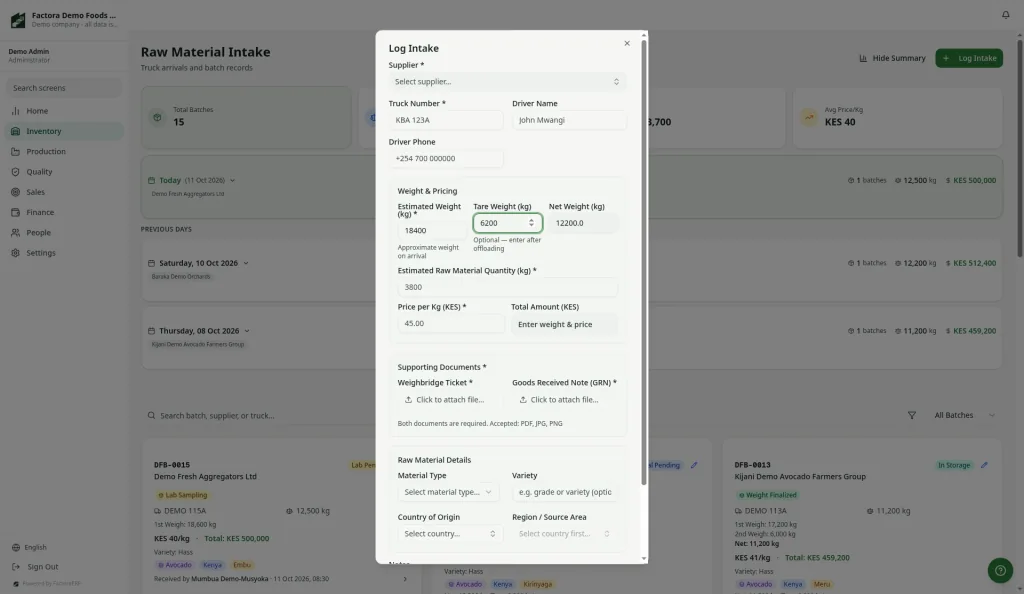
- Open Material Intake at
/f/<company-slug>/intake. Log the delivery with the supplier, the material, the estimated gross, and the tare. The demo form calculates 12,200 kg from 18,400 kg and 6,200 kg. - Save. Read the batch ID. Write it on the paperwork only as a copy of the system ID.
- Confirm the batch is the one Lab Results and Warehouse will search.
- Do not create another batch in Production for the same delivery.
- If the truck has two materials, expect two batches.
- Use the factory-operations lesson when you need the full field order, the net-weight calculation, and the status list.
Worked example
A demo intake saves and shows a new batch ID. Sorting and later dispatch use that ID. The paper ticket is an attachment, not a second identity.
Common mistakes
- Letting the weighbridge slip number become a rival batch ID.
- Creating the batch only when production starts.
- Merging two materials into one batch because there was one truck.
Recap
- Each intake creates a batch with an ID.
- That ID is what later stages follow.
- The detailed weighbridge steps live in the factory-operations lesson.