Integrations
ERP
Connect FactoraERP, another ERP, or leave the plant on its own records.
Introduction
Who this is for. A platform owner at factory creation, and a plant admin later on Settings.
ERP is optional. You can create the factory with Not now and connect it afterwards. The product does not invent an integration that the screen does not list.
Architecture
The plant keeps its own batches and bins. An ERP link is a setting on the company, not a second database you manage here.
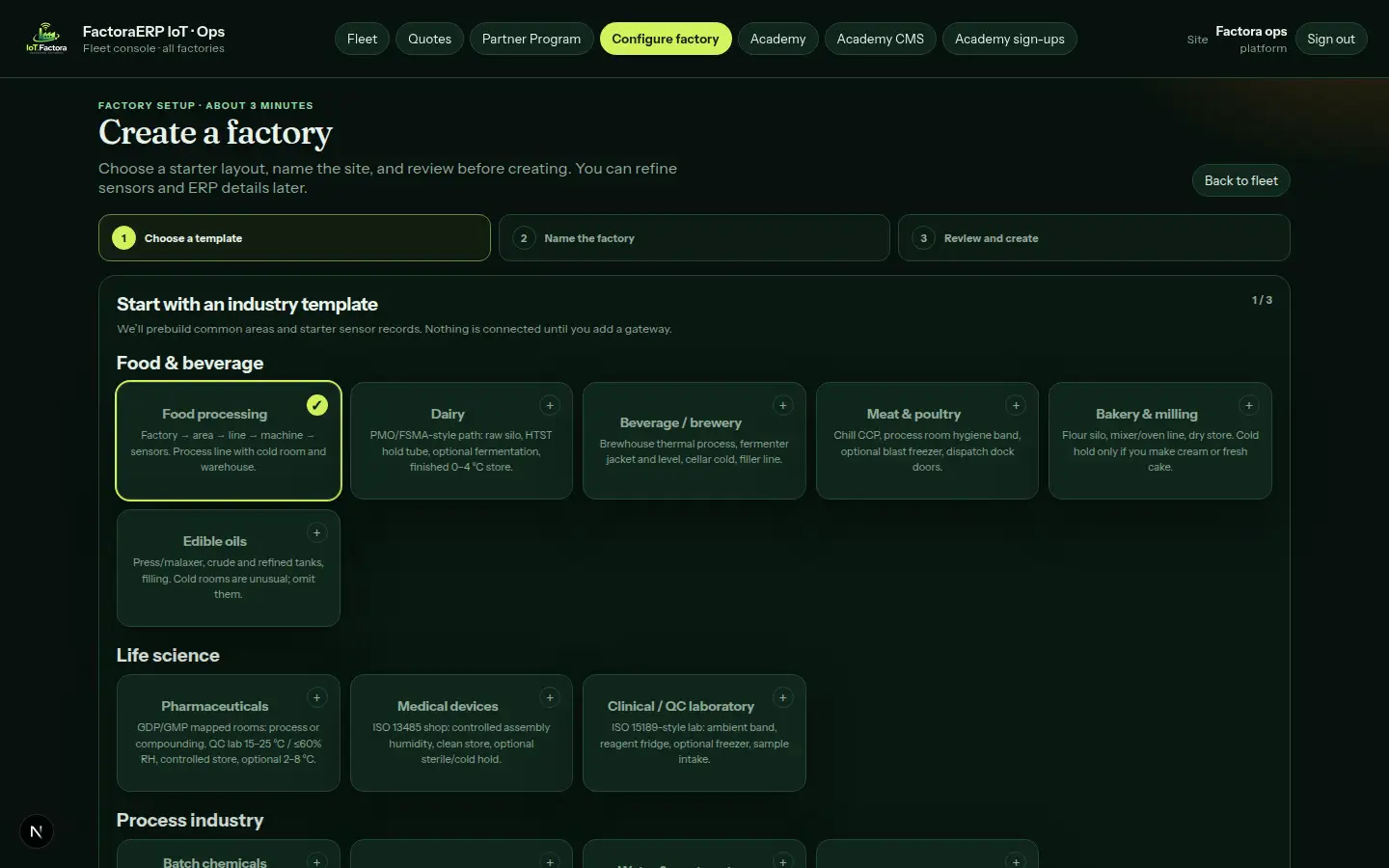
- Create a factoryAdvanced · ERP connection offers Not now, FactoraERP, or Another ERP.
- Settings, ERPThe same choice later: no ERP, FactoraERP, or an integration pack.
- Plant recordsStay the record on this site when no ERP is connected.
Step 0. Leave ERP off at creation unless you have the codes
- On Create a factory, open Advanced · ERP connection.
- Leave ERP system on Not now if you do not have the codes yet.
- Choose FactoraERP only when you can enter the FactoraERP organization code and the FactoraERP plant code.
- Choose Another ERP only when you can name it.
Step 1. Set ERP on Settings
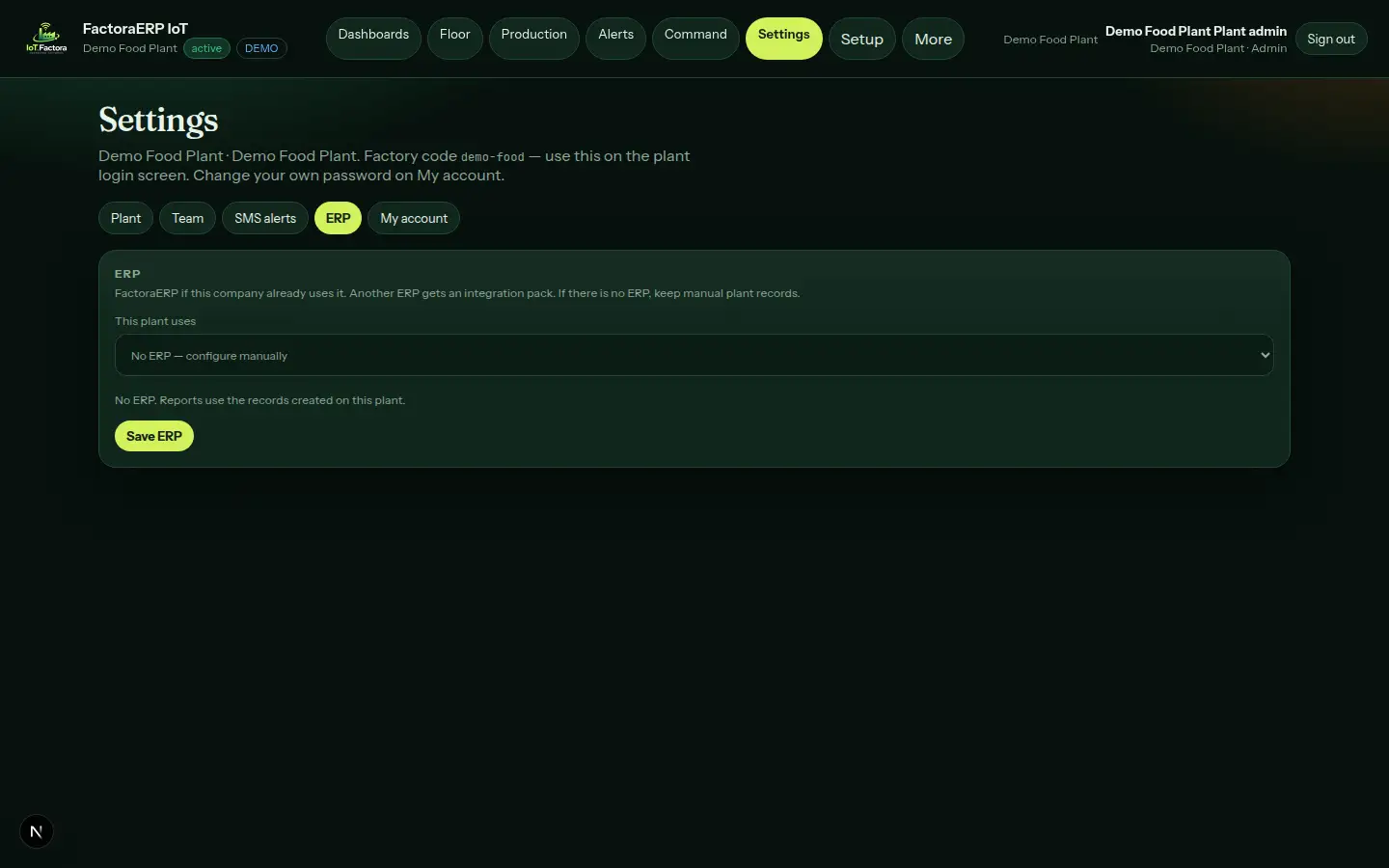
- Open Settings, then ERP.
- Choose No ERP — configure manually, FactoraERP, or Another ERP (integration pack).
- For FactoraERP, enter Plant code in FactoraERP.
- Choose Save ERP.
Step 2. Read what the device already shows
- Open a device. If this plant has batch, bin, or checkpoint context, it is listed on the device.
- Do not expect a new ERP menu. The link is the ERP tab and the fields on the device.