
Sorting & Grading
Sort incoming materials by grade or quality and allocate them to the right production line.
How sorting works
After intake, batches often need to be sorted by size, quality, or grade before production. The Sorting module lets you create sorting sessions, assign batches, and record output by grade.
Recording sorting results
For each sorting session, record the quantity sorted into each grade. The system calculates sorting efficiency and tracks waste. Grade-level quantities automatically update inventory.
Learning objectives
- Create a sorting session from a batch that has been received
- Record the quantity in each grade and read the efficiency and waste
- Confirm inventory now shows the grade quantities
Walk the screen
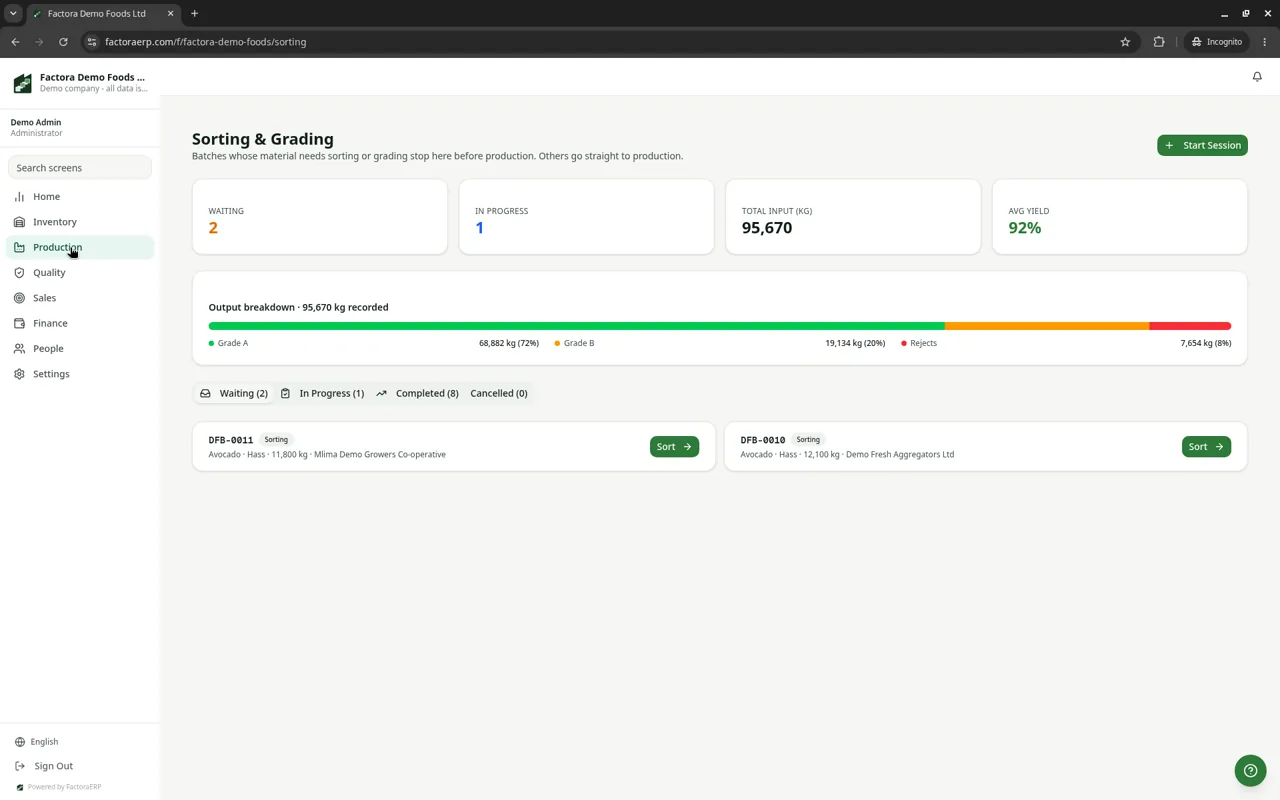
- Open Sorting at
/f/<company-slug>/sorting. The Waiting tab shows DFB-0011 and DFB-0010. Start a session on an approved lot, not on a lot that is still waiting for the lab. - Weigh each grade. Enter those quantities. Do not enter a percentage and hope.
- Read sorting efficiency and waste. A waste figure that is large means a grade was missed.
- Finish the session and check Inventory. The grade quantities should have updated.
- Send graded stock to the production line only when the session is complete.
- Use the factory-operations lesson for the worked 2,000 kg example and the 72.5 percent Grade A yield.
Worked example
A session records three grades and a waste line. Inventory for Grade A increases by the weighed amount, not by the input weight. The input batch is no longer treated as unsorted stock.
Common mistakes
- Allocating the whole input to Grade A without weighing.
- Updating inventory by a manual adjustment instead of finishing the session.
- Sorting a batch that has not been received.
Recap
- Sessions record output by grade.
- Efficiency and waste come from those quantities.
- Inventory updates from the grade quantities.