
Work Orders & Planning
Schedule production, create work orders, and plan capacity using the planning tools.
Work orders
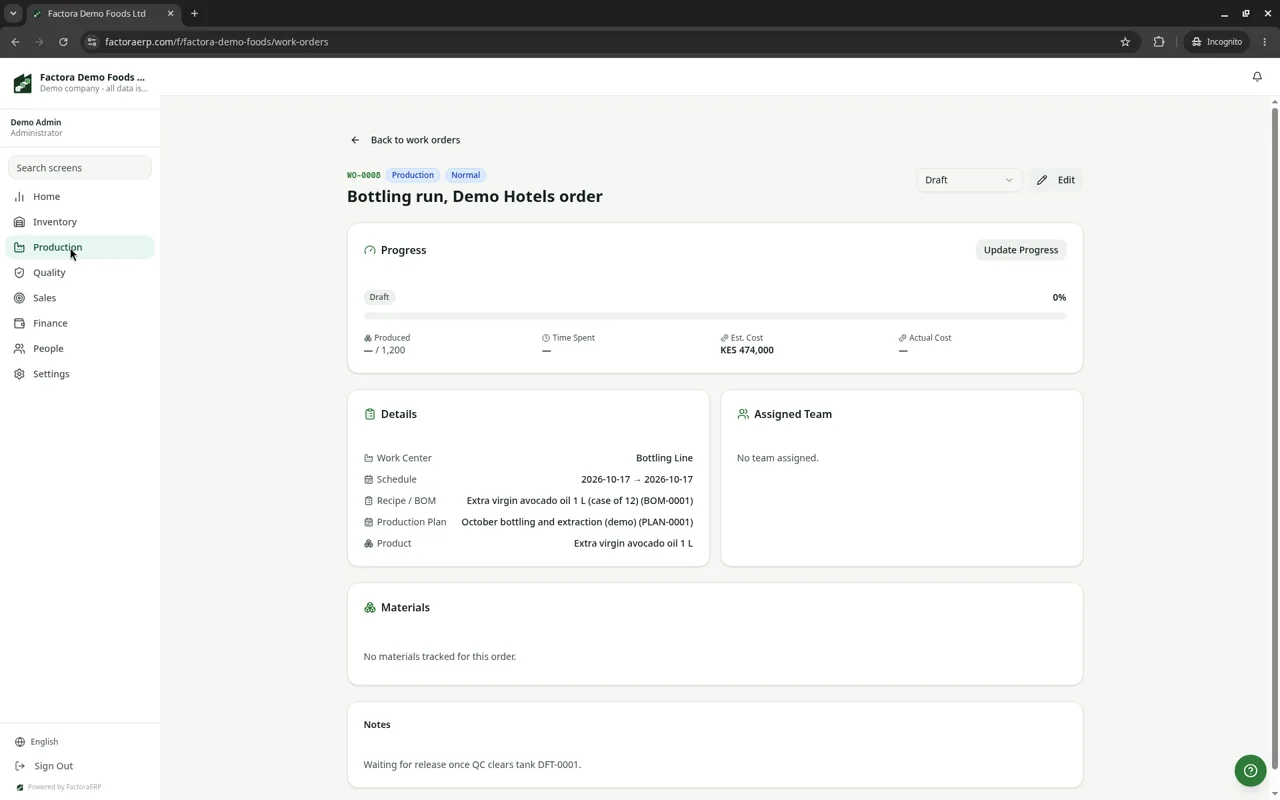
A work order is an instruction to produce a specific quantity of a product by a target date. Create them from Production → Work Orders. Each work order references a product, a Bill of Materials, and has a status (Draft → Released → In Progress → Complete).
Production planning
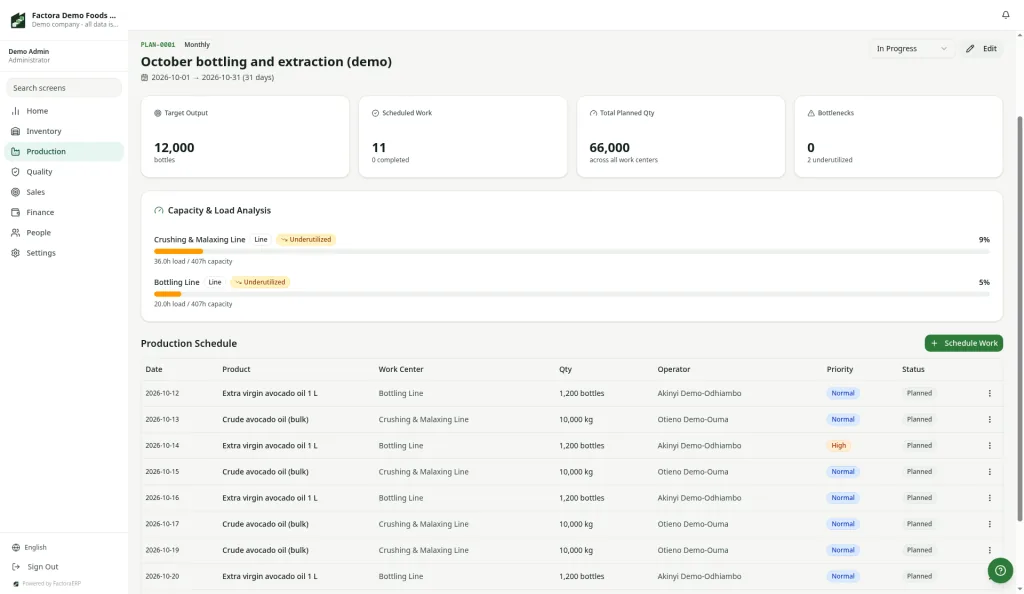
Open Production Planning at /f/<company-slug>/production-planning. The October plan is a table of 11 work orders with capacity bars. It is a table, not a drag-and-drop calendar, and this screen does not show an auto-schedule control. Change a date on the work order, then tell the floor.
Bill of Materials (BOM)
Before creating a work order, you need a BOM for the product. It lists every raw material and sub-assembly required, with quantities. The detail for BOM-0001 is version 1.0 with four ingredients. That detail view does not list other versions. A product can still have more than one version. Use the version this order should follow.
MRP Engine
The Material Requirements Planning (MRP) engine analyses your work orders, current inventory, and lead times to calculate what you need to purchase and when. It generates suggested purchase orders that you can review and approve.
Learning objectives
- Create a work order with a product, a BOM, a quantity, and a target date
- Move it Draft, Released, In Progress, Complete, and find it on the planning table
- Review MRP suggestions against stock and lead time before you approve a purchase
Walk the screen
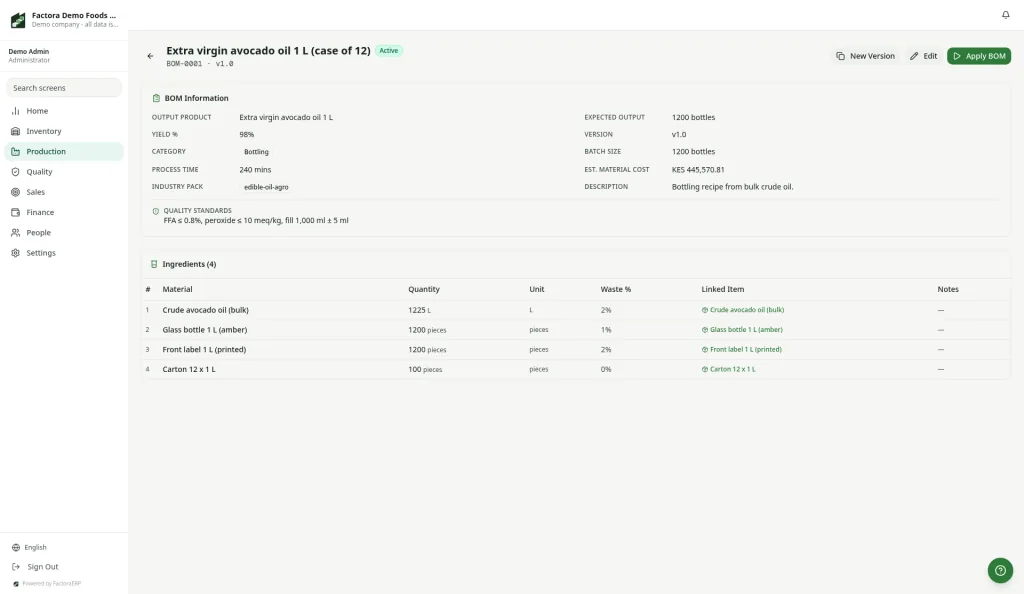
- Open Production, Bill of Materials, and confirm the product has a BOM with quantities. More than one version can exist. Use the version this order should follow.
- Open Work Orders at
/f/<company-slug>/work-ordersand create the order: product, BOM, quantity, target date. It starts as Draft. Demo order WO-0008 is Draft, uses BOM-0001, targets 1,200, and is scheduled for 2026-10-17. - Release it when materials and the date are agreed. The floor moves it to In Progress and then Complete.
- Open Production Planning at
/f/<company-slug>/production-planning. Read the October table and the capacity bars. To reschedule, change the date on the work order and tell the floor. - Open MRP when you need a purchase suggestion. Read it against stock before you approve anything. This planning screenshot does not show an auto-schedule button.
- Open the MRP engine. It reads work orders, stock, and lead times and suggests purchase orders. Review them. Approving is a separate step.
Worked example
WO-0008 stays Draft on BOM-0001, target 1,200, scheduled 2026-10-17, until you release it. You then find it on the October planning table, in the row with the capacity bar, not on a calendar card. If MRP suggests a purchase because on-hand raw material is below the order, compare that suggestion with Warehouse Stock before you approve the purchase order.
Practical tip: say the work-order number on the floor. WO-0008 is easier to find than 'the Thursday job'.
Common mistakes
- Releasing an order that points at an old BOM version by accident.
- Accepting every MRP suggestion without looking at stock.
- Changing the scheduled date and not telling the floor.
Recap
- Work orders run Draft, Released, In Progress, Complete.
- Production Planning is the October table with capacity bars.
- MRP suggests purchases. A person approves them.