
Foundation · Platform Essentials for Technical Teams Module: Step 1: Architecture overview
Roles
Access is role-based. Operators see the modules for their job; managers and directors see wider reporting. Always grant the least access needed.
Learning objectives
- Match a job to the modules that job uses, and leave the others off
- Give operators the floor screens and give managers the wider reports
- Ask an administrator to change the role when someone changes job, rather than lending a login
Walk the screen
- Open User Management at
/f/<company-slug>/admin/usersand select a demo user. You can also pre-assign a role by email before they sign in. - Read the role. A lab technician should reach Lab Results. A receiving agent should reach Material Intake. They do not need each other's write access.
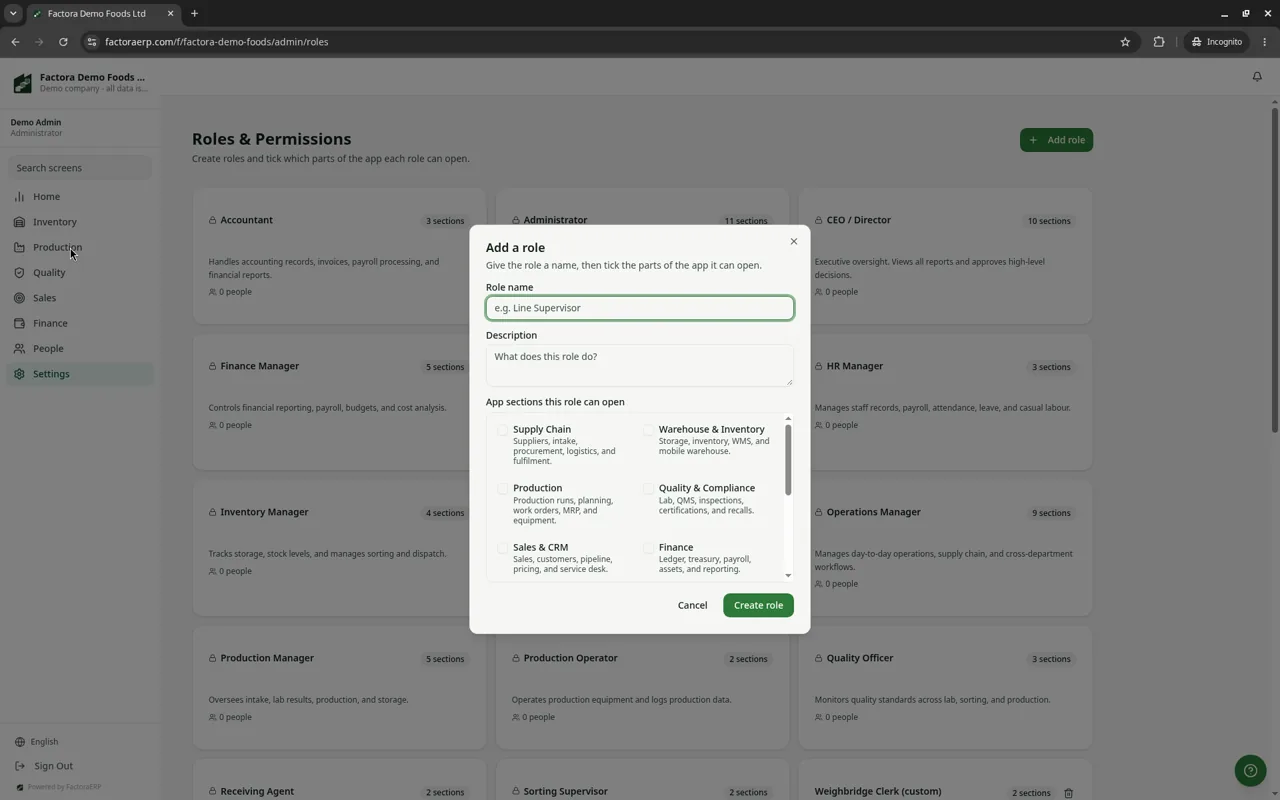
- Open Roles and Permissions at
/f/<company-slug>/admin/rolesif the built-in role is too wide. Add a role and tick the sections that job needs. There are no access-level sliders. - Compare an operator sidebar with a manager sidebar. The manager sees wider reporting. That is the role, not a second product.
- When someone moves from receiving to sales, change the role. Do not leave the old modules ticked.
- Sign out of the shared demo user before the next person, so the audit shows their name.
Worked example
Demo user 'Receiving A' has the receiving role: Suppliers are visible enough to pick a supplier, Material Intake can log a truck, and Payroll is absent. When that person moves to the lab, the administrator switches the role. The old login is not passed to the new receiving clerk.
Common mistakes
- One shared admin login for the whole shift.
- Copying a director role onto an operator because it was faster than ticking modules.
- Leaving last year's modules on a person who changed job.
Recap
- Access is role-based. Operators see their job. Managers see wider reporting.
- Always grant the least access needed.
- Change the role when the job changes. Do not share the login.
Quiz for this module: Step 1: Architecture overview.