
Foundation · Factory Operations Quick Start Module: Step 1: Receiving material at the gate
Logging a delivery in Material Intake
Record the truck and weighbridge readings before offloading starts.
Open Material Intake from the sidebar and click Log Intake. Fill in the form in this order:
- Supplier - pick from the list. If the supplier is new, it must be created in Suppliers first, so purchasing and payments stay linked.
- Truck number, driver name and phone - these appear on the delivery documents and help resolve disputes later.
- Material type and variety - choose exactly what is on the truck. Mixed loads should be logged as separate intakes.
- Gross weight (estimated weight of the full truck) and Tare weight (empty truck). Factora calculates the Net weight for you:
Net weight = Gross weight - Tare weight
- Price per kg - the agreed price; it drives the supplier payment.
- Country / region - needed for origin and export certificates.
- Supporting documents - attach the weighbridge ticket and goods received note (GRN) photo.
Click save. The lot now shows the status Received, and automatically moves to Lab Pending so the lab knows a sample is waiting.
Common mistakes to avoid
- Typing the net weight into the gross weight field. Always read both numbers off the weighbridge ticket.
- Forgetting the ticket photo. Without it, payment approval is often delayed.
- Logging before the truck has been weighed empty. Record tare at the point it is measured.
Statuses you will see on the Pending Intake tab
Received -> Lab Pending -> Lab Passed / Lab Failed -> Approval Pending -> Approved -> Offloading -> In Storage -> Payment Approved. A lot can also be Rejected at the lab or approval stage.
Learning objectives
- Log supplier, truck, material, gross, tare, price, origin, and the ticket photo in that order
- Let FactoraERP calculate net weight as gross minus tare
- Expect the saved lot to show Received and then Lab Pending
Walk the screen
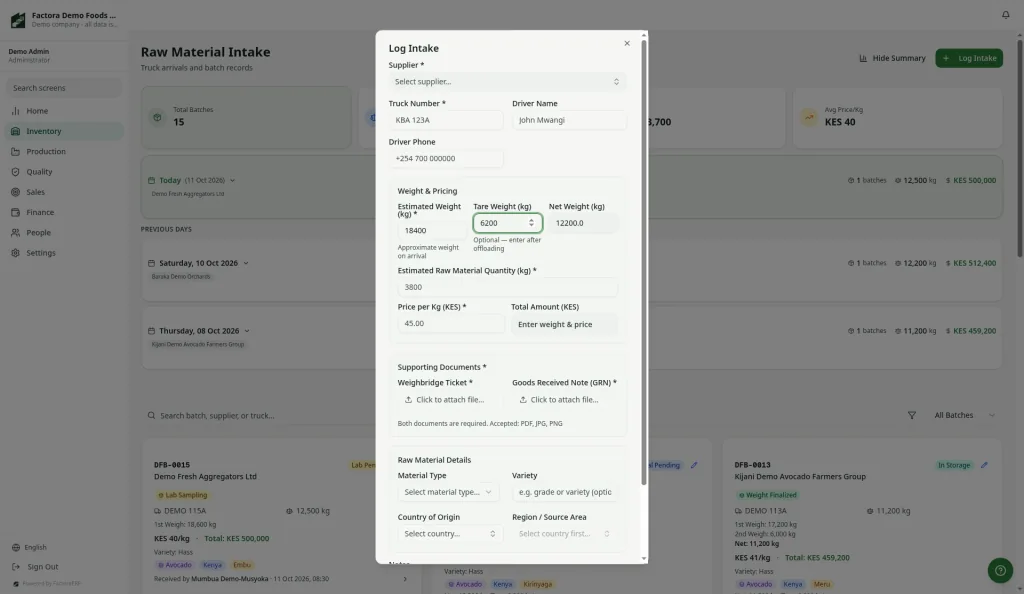
- Open Material Intake at
/f/<company-slug>/intakeand choose Log Intake. Do not start if the supplier is missing. Add the supplier first. - Enter truck number, driver name, and phone from the delivery documents.
- Choose the material and variety on this truck. A second material is a second intake.
- Type gross, the full truck, and tare, the empty truck, from the weighbridge ticket. Leave net to the calculation.
- Enter the agreed price per kilogram, the country or region for origin, and attach the ticket and goods received note.
- Save. Confirm the status is Received and that it moves to Lab Pending on the Pending Intake tab.
Worked example
Demo ticket on Log Intake: estimated gross 18,400 kg, tare 6,200 kg. Net weight stored is 12,200 kg. You do not type 12,200 into gross. The ticket and the goods received note are attached before save. After save, lot DFB-0014 is the lot you will see on Approvals, as Received and then Lab Pending. A second material on the same truck is a separate Log Intake, not a note on this one.
Practical tip: read both weights off the weighbridge ticket while the truck is still at the gate. The net on the form should match the ticket before you save.
Recap
- Supplier first, then truck, material, gross, tare, price, origin, and photos.
- Net weight is gross minus tare. FactoraERP calculates it.
- Save moves the lot to Received and then Lab Pending. Mixed materials are separate intakes.
Quiz for this module: Step 1: Receiving material at the gate.