
Foundation · Factory Operations Quick Start Module: Step 2: Quality testing and approval
Test samples, record results and decide whether a lot can go further.
Testing a sample in Lab Results
Moisture, damage and oil content readings decide whether a lot passes.
Open Lab Results. The Incoming QC tab lists every lot that is waiting for testing. Choose the lot, then record:
- Sample number - write the same number on the physical sample bag.
- Dry matter % and ripeness score
- Pest damage % and disease damage %
- Oil content estimate (for oil-bearing materials)
- Overall result - Pass or Fail
- Fail reason - required when the result is Fail
- Notes - anything unusual, for example foreign material or smell
Click Submit results. A pass moves the lot to Lab Passed and on to approval. A fail moves it to Lab Failed, and it cannot be used in production.
Good lab practice
- Take samples from several places in the load, not just the top.
- Test within the time your quality procedure allows - moisture changes over time.
- Never edit a result to make it pass. If a test was done wrong, re-test and note why.
Remember: the lab is the factory's first safety barrier. A wrong pass here can affect every product made from this lot.
Learning objectives
- Open Incoming QC, record the sample number and the quality readings, and submit
- Enter a fail reason whenever the overall result is Fail
- Take samples from more than one place in the load and do not edit a result to force a pass
Walk the screen
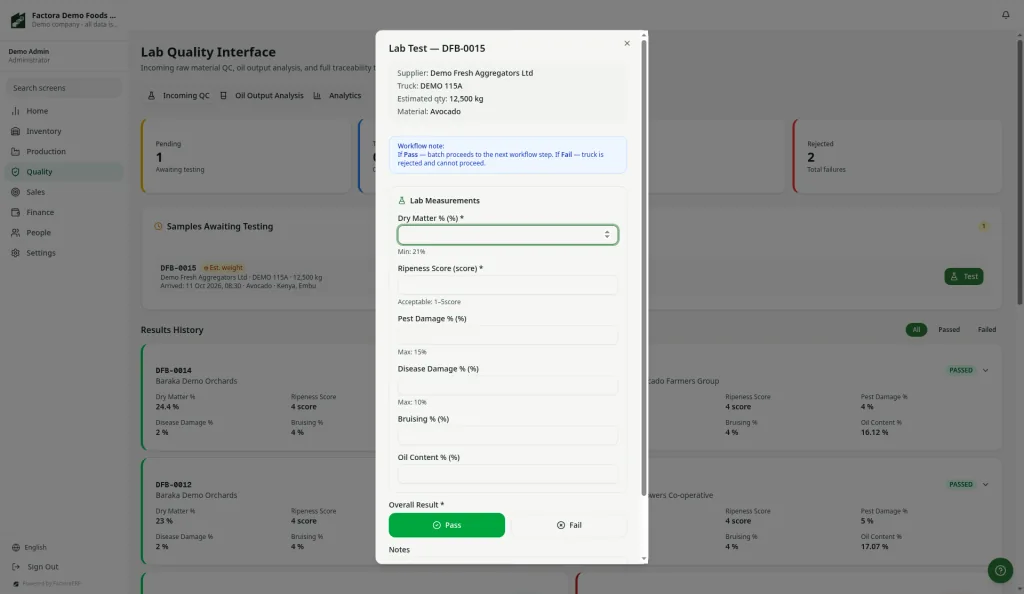
- Open Lab at
/f/<company-slug>/lab. The empty form is Lab Test - DFB-0015. Select the lot that is waiting. It should already be Lab Pending. - Write the sample number on the physical bag and type the same number.
- Enter dry matter percent, ripeness score, pest damage percent, disease damage percent, bruising, and the oil content estimate when the material is oil-bearing.
- Set overall result to Pass or Fail. If Fail, the fail reason is required.
- Add notes for anything unusual, such as foreign material or smell.
- Submit. Pass moves the lot to Lab Passed and on to approval. Fail moves it to Lab Failed, and production cannot use it.
Worked example
The empty Incoming QC form is Lab Test - DFB-0015. Fill dry matter, ripeness, pest, disease, bruising, and oil, then Pass or Fail. Sample the top, the middle, and the back of the load, not only the top. Lot DFB-0014, the 12,200 kg intake, is a different record and is the one on Approvals. If DFB-0015 is Fail, the fail reason is filled and that lot is not booked onto a run.
Common mistakes
- Sampling only the top of the load.
- Changing a number so the overall result becomes Pass.
- Submitting Fail with an empty fail reason.
Recap
- Incoming QC is the queue. Submit writes Pass or Fail onto that lot.
- Fail needs a reason and blocks production.
- Re-test and note why if the test itself was done wrong. Do not edit the pass.